
Features available with this automation
- Take Client/Patient bookings via Clinic2Cloud
- Patients are sent an invitation to join a video consultation from Clinic2Cloud with a link to their appointment/session
Listed below are the simple steps to show you how Telehealth works in Clinic to Cloud. These steps are essential for schedule management and appointment reminder notifications.
This article assumes you already have an operational Coviu account. If you don't, head to our website to find a plan that is suitable for you.
How to set up the automation
?
These steps only need to be completed once for each telehealth appointment workflow.
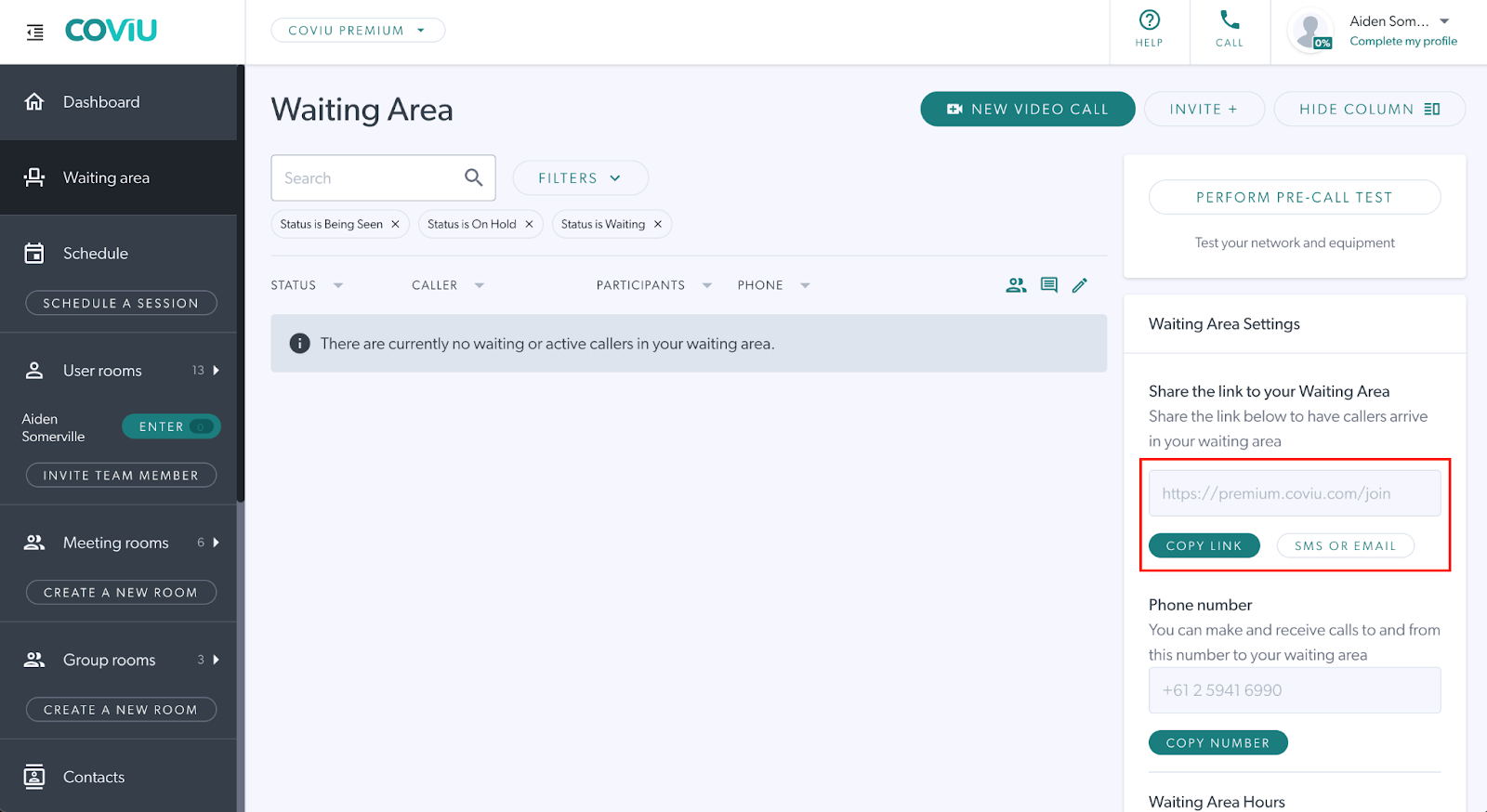
Step 1: Retrieve your Coviu telehealth link
- Log in to your Coviu account
- Select your Clinic
- Open your Waiting Area or User Room
- Copy the telehealth link.
This is the link patients will use to join their online consultation.
Step 2: Set up a telehealth appointment type in Clinic to Cloud
- Log in to Clinic to Cloud.
- Go to Settings → Define your C2C.
- Select Appointment Types.
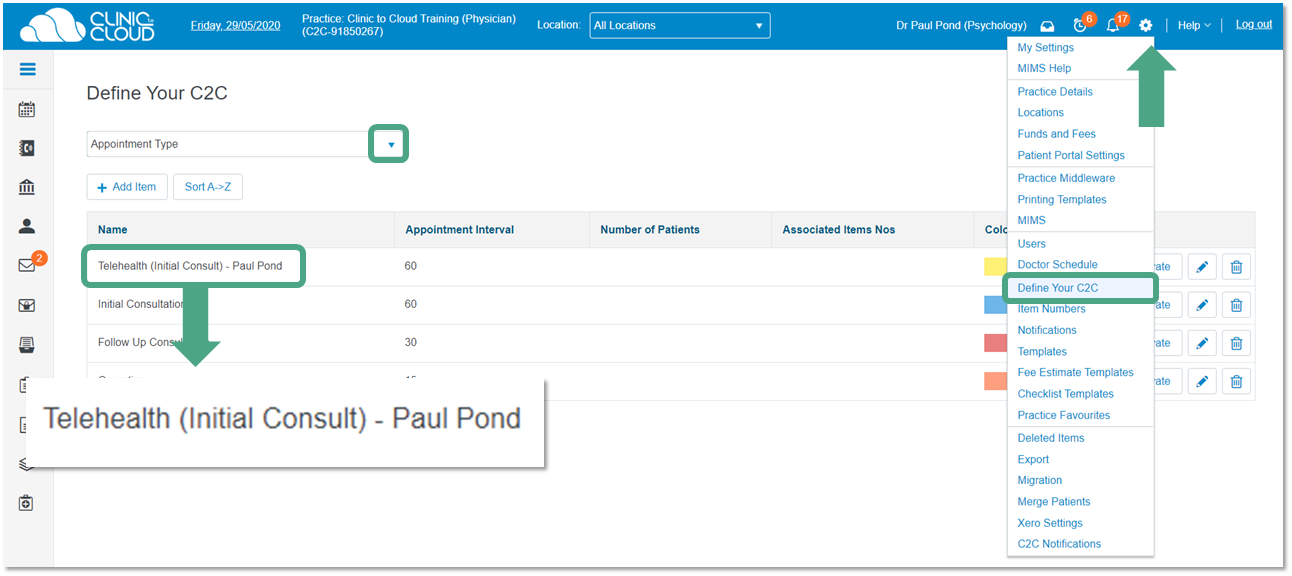
- Create or edit an appointment type for telehealth (e.g. Telehealth Consultation).
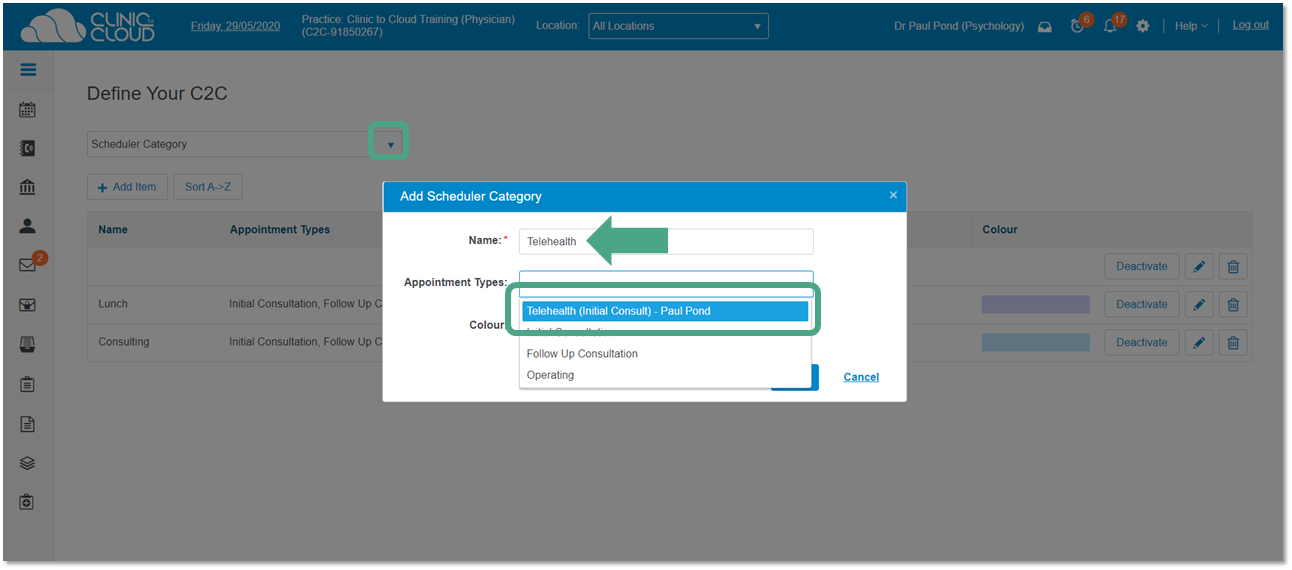
- Ensure this appointment type is included in the appropriate scheduler category.
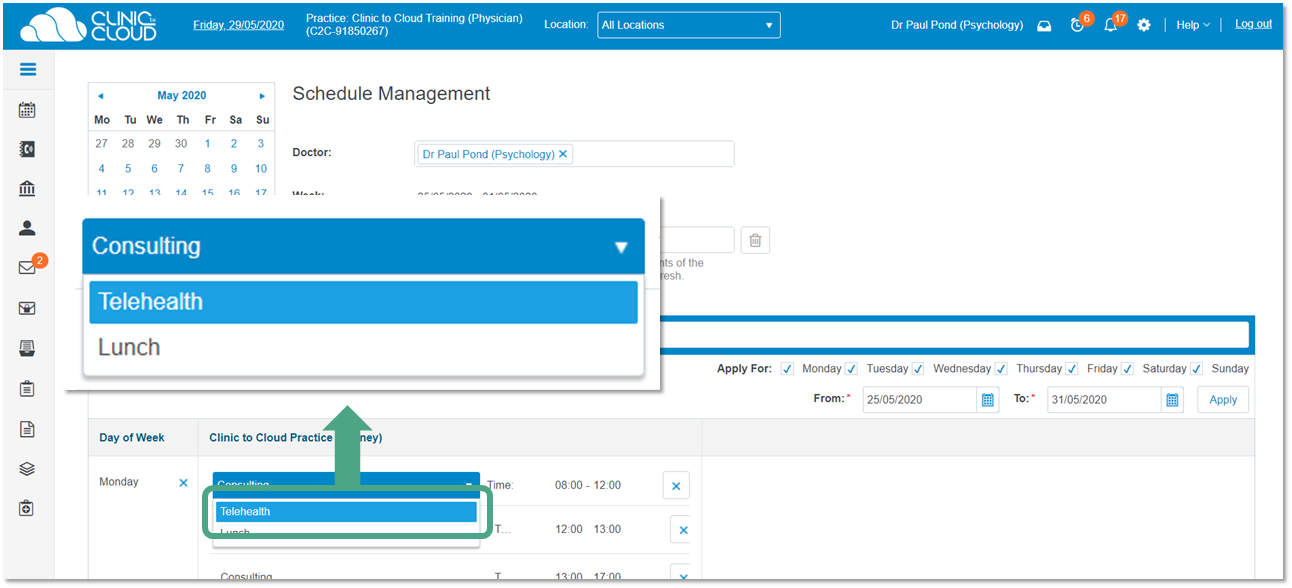
This allows Clinic to Cloud to recognise telehealth bookings in the calendar.
Step 3: Add the Coviu link to Clinic to Cloud notifications the Coviu link to Clinic to Cloud notifications
-
In Clinic to Cloud, go to Settings
-
Navigate to Communications / Notifications
-
Open the appointment confirmation and/or reminder templates used for telehealth
-
Paste your Coviu telehealth link into the email and/or SMS content
-
Save your changes
Clinic to Cloud recommends including the telehealth link directly in appointment notifications so patients know how to join their session.
Step 4: Confirm notifications are enabled for telehealth appointments
-
In Clinic to Cloud, open Appointment Types
-
Select your telehealth appointment type
-
Confirm that appointment confirmations and reminders are enabled
-
Save your changes
Once configured, Clinic to Cloud will automatically send the Coviu link when appointments are booked or reminders are triggered.