
Last Updated: November 2023
On this page:
How to change your in-call settings
When you are on a video call, click the Settings cog at the bottom left corner of the call interface screen to access the in-call settings.
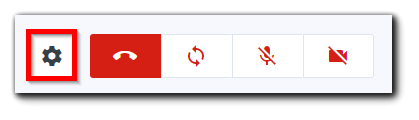
- Select camera
- Select microphone
- Select speaker
- Select video quality
- Select layout
- Select background
- Change language
- Change audio behaviours
- Select max video feeds (only visible if there are at least five call participants)
Click on each one to change the settings of your device or call interface. You will have the choice to choose between your default device settings or external hardware that you may have connected to your device, such as an external webcam, microphone, speaker, etc.
If you connect external hardware to your computer, but it is not functioning as it should be, you may need to access the in-call settings and make sure they are selected to be used correctly.
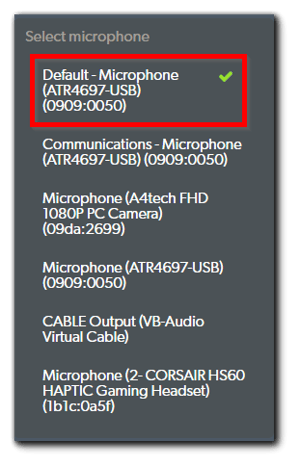
The example below shows that the default computer microphone has been selected:
More support options
You have completed another Coviu help article. You now know how to change your in-call settings.
If this is not what you were looking for, explore our knowledge base and search for another article from here.
If you still require any assistance, please do not hesitate to get in touch with our friendly Customer Success team using any of the contact methods available here.