
Note: Appointment Reminders in MediRecords
MediRecords does not currently support customising appointment reminders based on appointment types, as MediRecords only has a single default reminder message. As a result, there are two supported ways to send Coviu room links to patients.
Available Options
- Use the Coviu–MediRecords integration
This generates a unique session link for each appointment and bypasses the Coviu waiting area flow. (Essentials, Standard, Premium Plans Only) - Use MediRecords SMS on Demand
This allows you to manually send appointment links to patients via SMS prior to their appointment. You can streamline this process by creating templates with your room links for each clinician
Step 1: Retrieve Your Coviu Waiting Area Link
Before setting up appointments in Medirecords. first, copy your Coviu Waiting Area link. This is the link your patients will use to join their telehealth appointments.
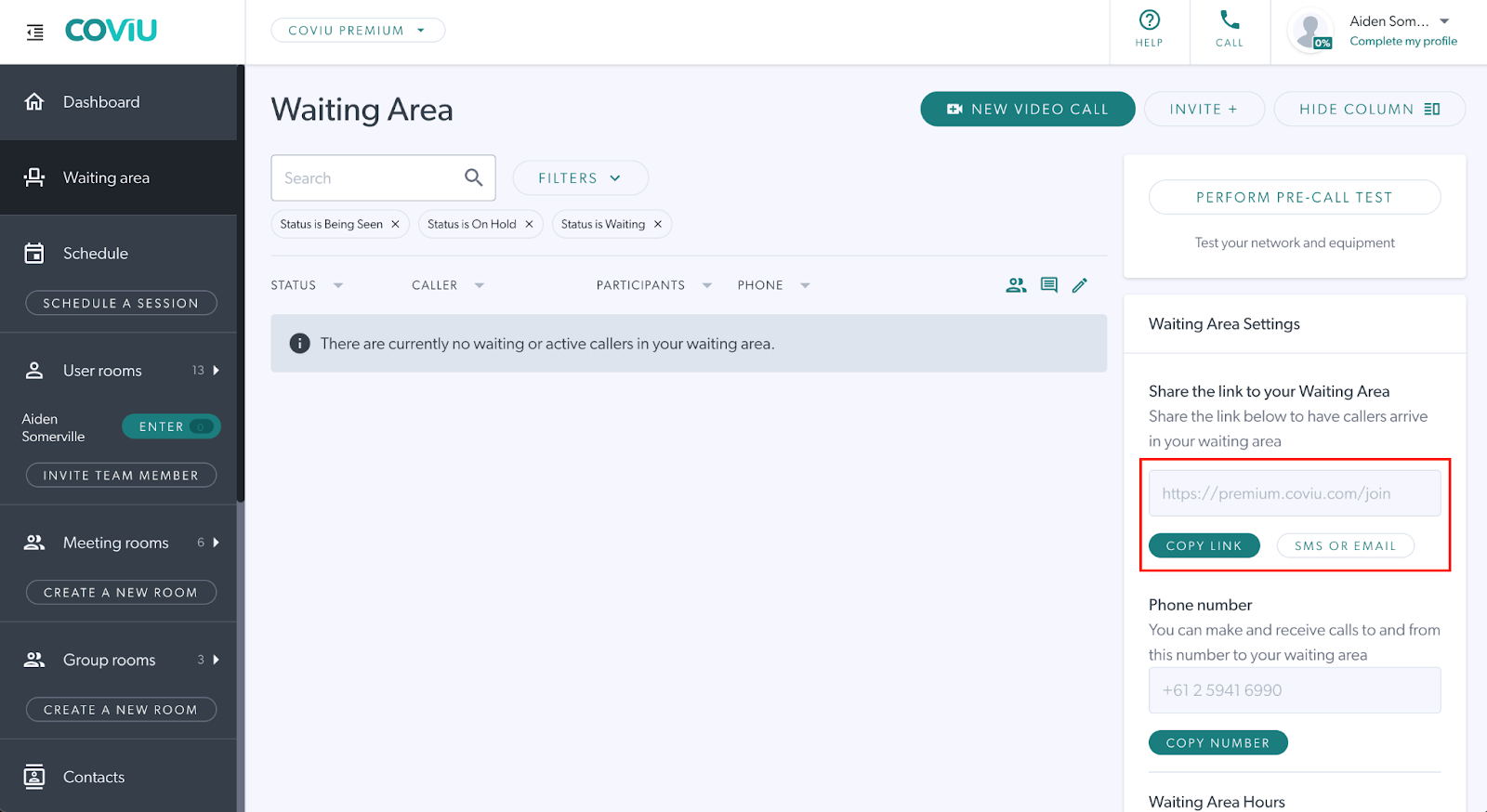
Step 2: Creating SMS Template
-
Navigate to More > Settings > SMS Templates.
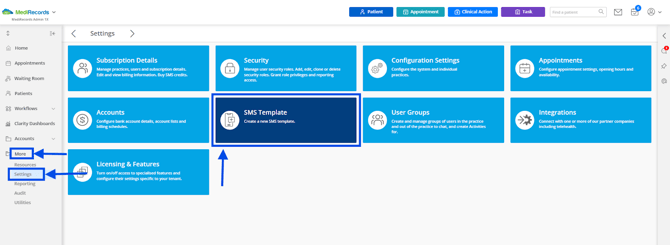
Note: If this is your first time using SMS Templates, the message box will be blank.
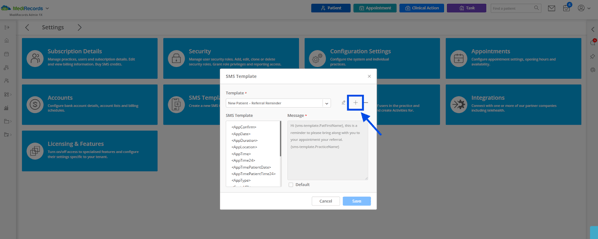
- Click the Plus (+) icon to create a new template.
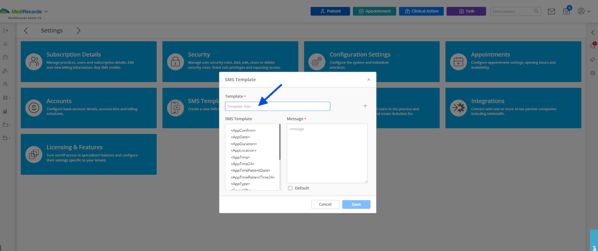
- Enter a name for the template. We encourage you to create dedicated SMS templates for each clinician and their Coviu room
- Add the SMS content and include your Coviu waiting area link for patients to join and don't forget to tick the default box.
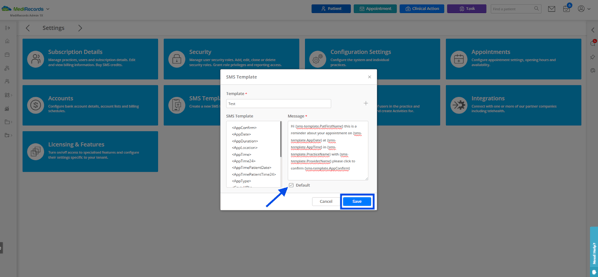
- Click Save
Step 3: Creating Appointment and Sending SMS.
From Medirecords Left Side Panel Click Appointments.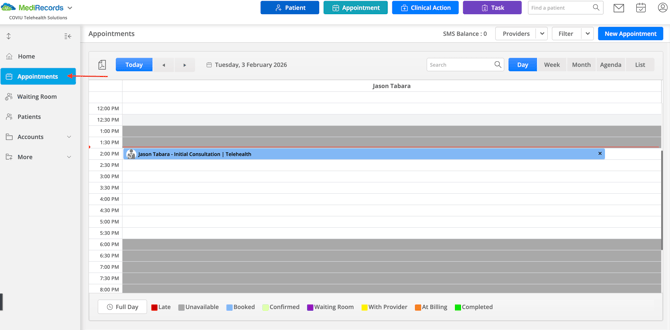
-
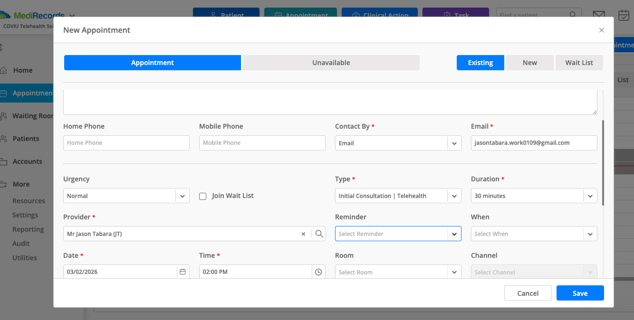
Create an appointment, enter the mobile phone number, and leave the reminder field blank.
- Click the created appointment.
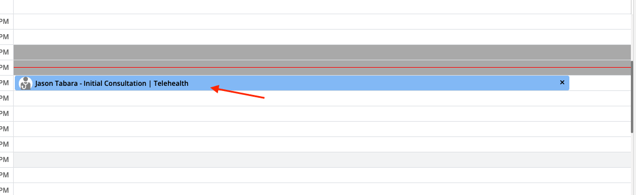
- Click the Small SMS Icon on the "Edit Appointment Page"
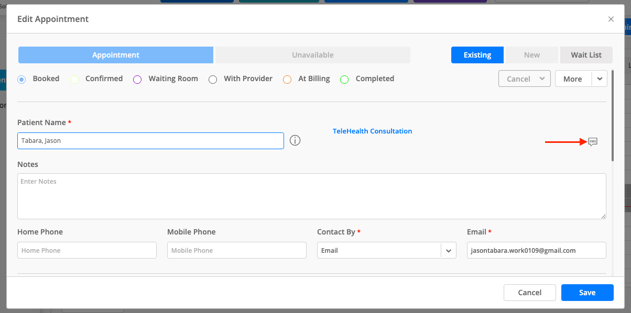
- Select the template that includes your waiting area link, then click Send. The SMS will be sent instantly to the client.
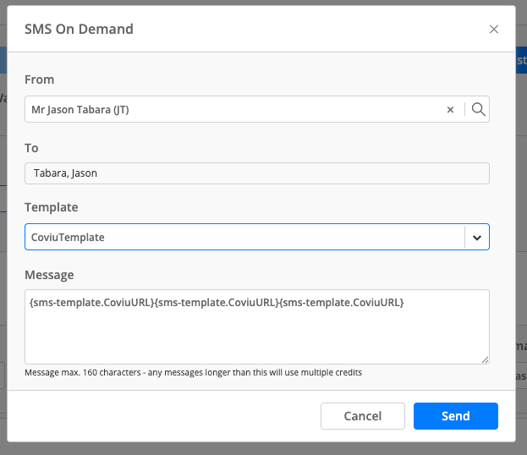
You have now automated your waiting area link to your Medirecords Appointments.
Next steps: configure your Telehealth appointment types, more information can be found in this article.
This help article is also available on the MediRecords website by clicking here.
If you need support with your MediRecords system, you can get in touch with them at support@medirecords.com.