
Please note: This feature is only available on our Premium and Enterprise plans.
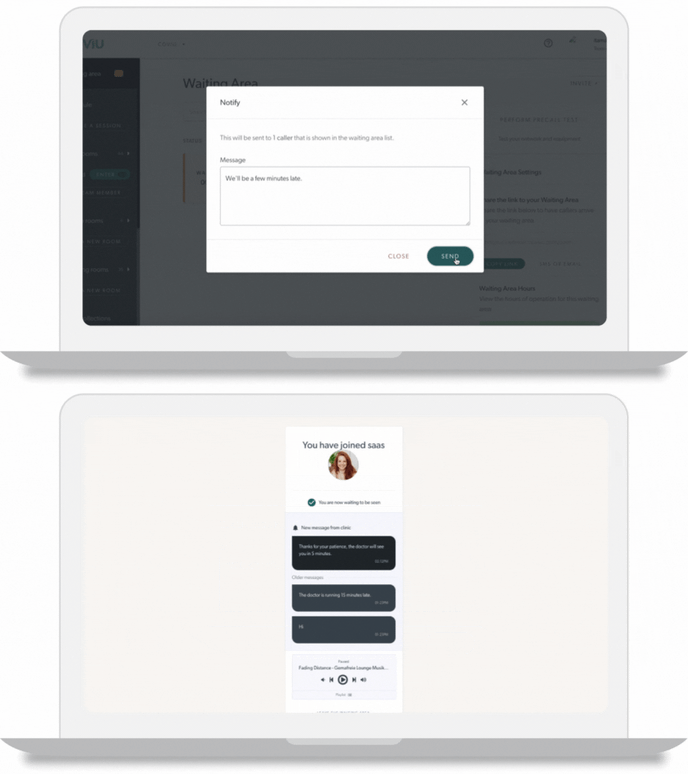
Providers can now send notifications to a filtered list of specific patients or clients i.e. those who are waiting to be seen. Providers then have the ability to bulk send a notification to those that are in the filtered list.
Step 1: Click the Icon to open up the modal
Step 2: Write your message
Step 3: Press send. The user will be shown how many people will receive this message.
In addition, when a provider messages a patient or client from the waiting area notification system their message history and chat log can now be viewed. This will show who sent the message and when the message was sent.
Step 1: Click the three dots that appear beside the guest in the waiting area
Step 2: Click Notify
Step 3: Proceed to have a conversation
These new features are available on our Trial, Clinic and Enterprise plans. To upgrade, click here to learn how to change your plan within your account.
Please contact support@coviu.com for any questions.
Updated 23/02/22