
On this page:
Overview
In addition to starting AI Scribe live during a telehealth, phone, or in-person consult, you can upload a recording you already have (for example, a dictation or a previously recorded consult) and have Coviu generate a transcript and summary from it.
Upload a recording
- Go to AI Notes in your Coviu menu.
- Select the Notes tab.
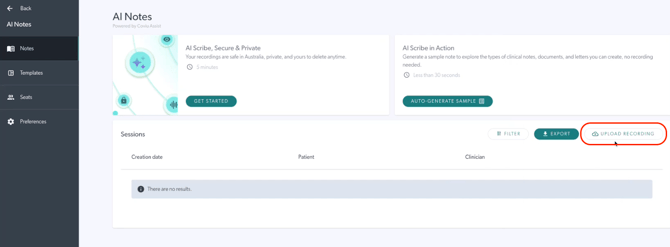
- Click Upload Recording.
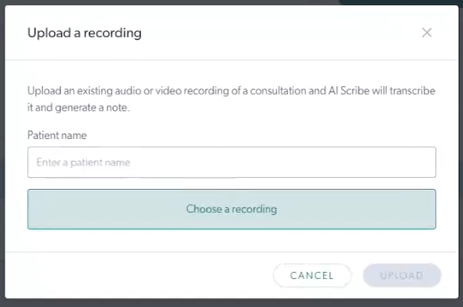
- Click Choose a Recording and select the audio or video file from your device.
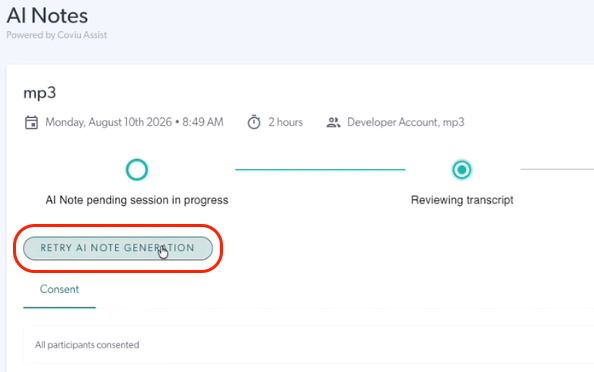
- Click Retry AI Note Generation to try again.
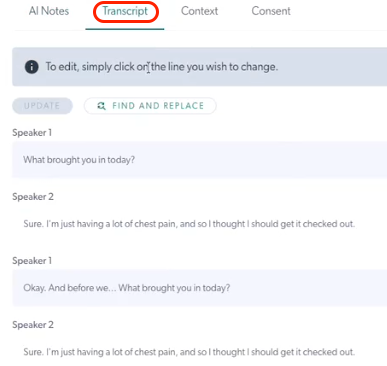
- Once complete, click on the Transcript tab to view the transcript alongside your generated note.
Supported files and limits
- Both audio and video files can be uploaded.
- File types: mp3, mp4, m4a, wav, flac, ogg, opus, webm, aac, mov
- File size max: Under 500MB
- Max length of recording: Under 2 hours