
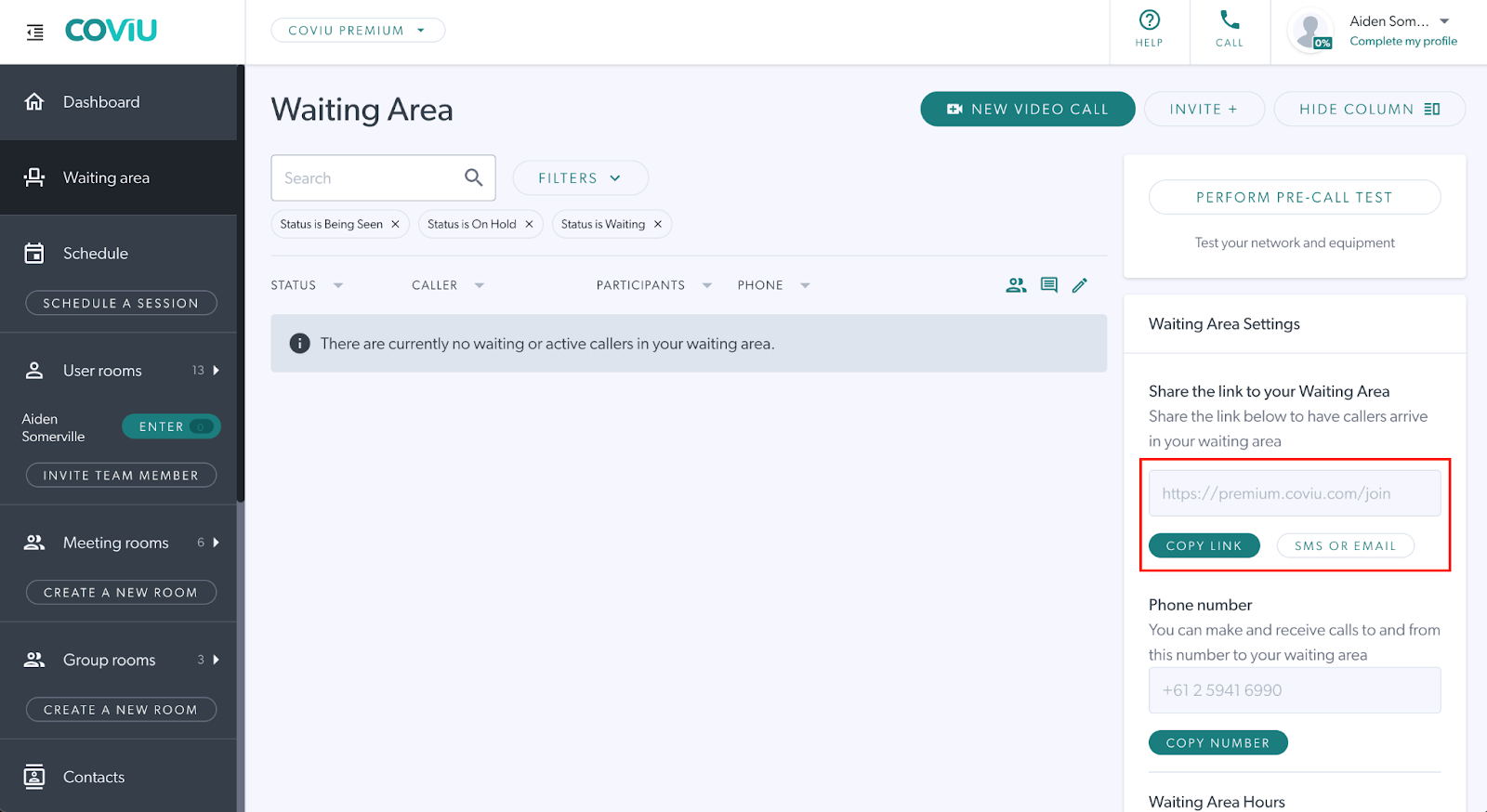
Step 1: Retrieve Your Coviu Waiting Area Link
Before setting up appointment messages in Zedmed, retrieve your Coviu Waiting Area link.
This is the link your patients will use to join their telehealth appointments.
Step 2: Create or edit an appointment message in Zedmed
-
Log in to Zedmed.
-
Open Practice Setup from the main menu.
-
Navigate to SMS Configuration.
-
Select Appointment Reminders, Appointment Schedule or Appointment Confirmation.
- Make a selection in the Appointment Type field and enter the text into the SMS Reminder Message field.
-
Create a new message template by clicking on Add Message or edit an existing one used for telehealth appointments.
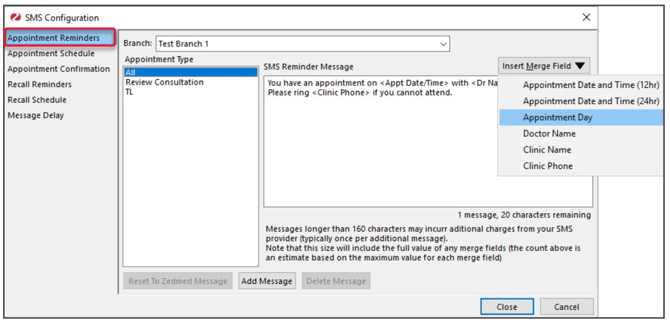
- In the message body, paste your Coviu Room or Waiting Area link.
This link is what your patient will use to join their telehealth appointment. - Select Close to save and exit.
More support options
You’ve completed another Coviu help article and now know how to integrate Coviu with Zedmed.
If this isn’t what you were looking for, you can explore our knowledge base and search for another article from there.
If you still need help, please don’t hesitate to contact our friendly Customer Success team using any of the available support options.