
Last Updated: September 2026
On this page:
- What is the in-call chat feature?
- How to use the in-call chat feature
- Chat Permissions
- Changing Chat Permissions
- More support options
What is the in-call chat feature?
Coviu offers the option to use a chat feature during your video call.
This may be particularly helpful if you’d like to share a link with your client or patient (or vice versa), or if you need to type something to them. You could have a client or patient who is hard of hearing, or potentially having issues with their device (e.g. their microphone, speaker, etc.)
The Chat feature is only available when there is more than one participant in the call. When you are the only person in the call, Chat will not be available.
How to use the in-call chat feature
- Log in to your Coviu account as you normally would.
- Enter the call with your client or patient.
- Click the speech bubble icon or the Open Chat button near the bottom right corner of the call interface. The chat panel will open on the right side of the call interface.
- Type your message and press enter on your keyboard to send it.
- To download your chat history as a text file, click Download chat below the text box. Only the host of the video call can download the chat history.
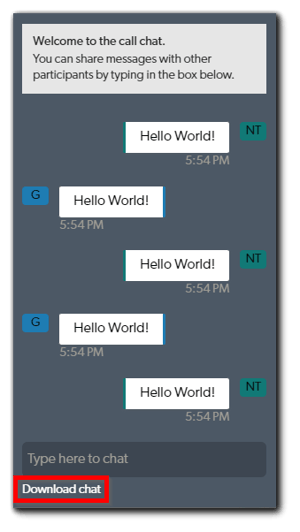
- To hide the chat panel, click the back arrow near the top right corner of the call interface. The chat messages will remain in the chat panel and you can go back to it at any time during your video call.

Note: Any data shared during your call (including your chat history) will not be stored automatically; you will need to download and save everything before ending your call. If you end the call before downloading or saving the data, everything will be lost and unrecoverable.
Chat Permissions
The Chat feature allows participants to send and receive text messages during a Coviu call. Hosts can control who can send messages using the Chat Permissions dropdown.
There are three Chat Permission options:
-
Everyone
Both hosts and guests can send messages in the chat.
-
Hosts only
Only hosts can send messages. Guests can still view and read the chat, but they cannot send messages.
-
Off
Chat is disabled for sending messages. No one can send new messages, but any messages that were sent earlier in the call remain visible and can still be read.
Changing Chat Permissions
To change the Chat Permissions:
- Join the Coviu call as a host.
- Open the Chat panel.

- Locate the Chat Permissions dropdown on the top right corner.
- Select the permission level you want:
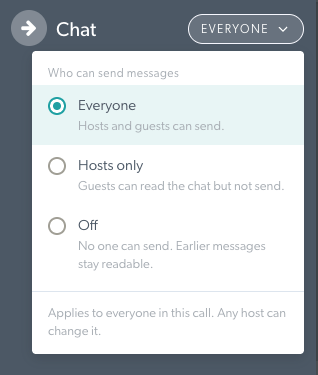
The selected permission determines who can send new chat messages during the call.
More support options
You have completed another Coviu help article. You now know how to use Coviu's chat feature.
If this is not what you were looking for, explore our knowledge base and search for another article from here.
If you still require any assistance, please do not hesitate to get in touch with our friendly Customer Success team using any of the contact methods available here.