
Before you begin:
- Make sure you have the appointment link sent by your provider (via email, or SMS)
- Use a supported browser (Google Chrome, Safari, or Microsoft Edge)
- Ensure you have a stable internet connection
How to join your appointment
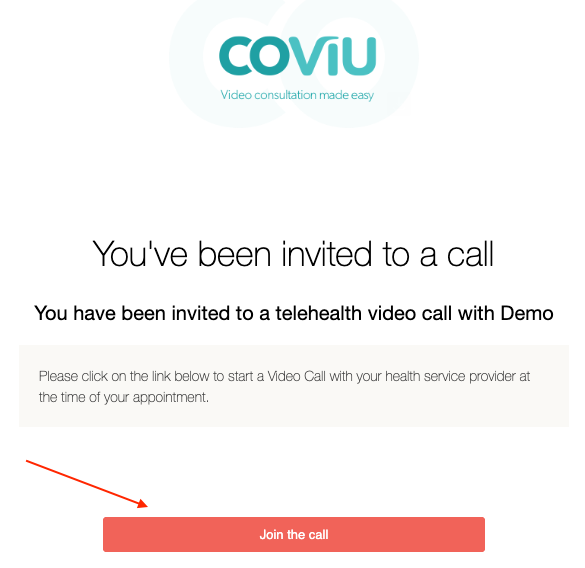
- Open the appointment link provided by your healthcare provider.
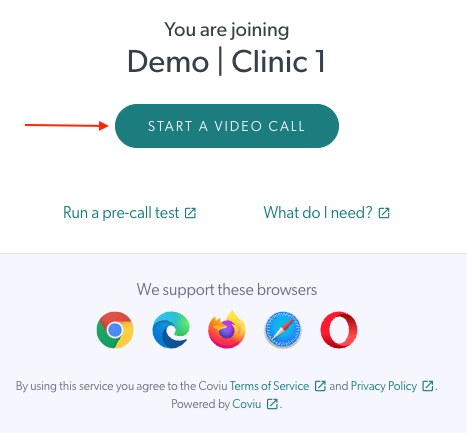
- Click Start a Video Call.
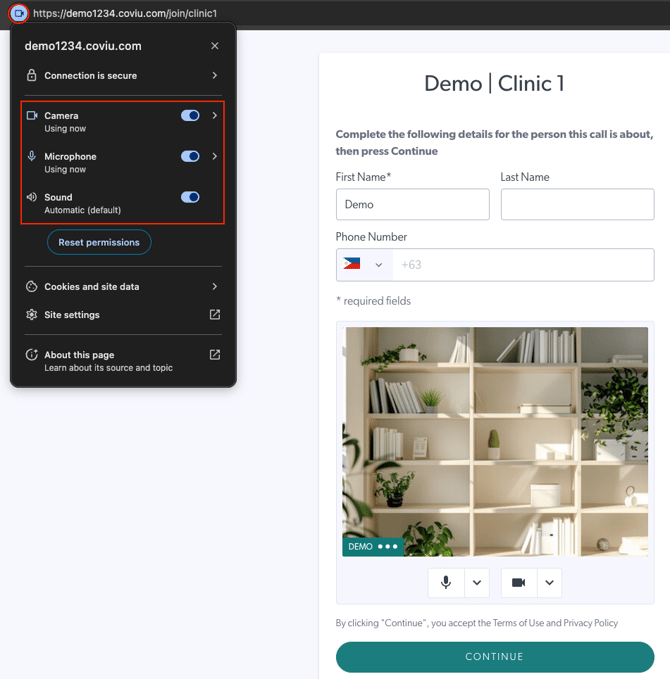
- Enter your name when prompted.
- Allow access to your camera and microphone when asked.
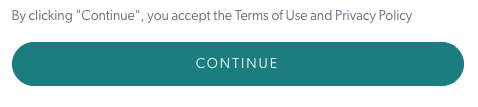
- Click Continue to enter the session.
What happens next?
- You may be placed in a waiting room until your provider is ready.
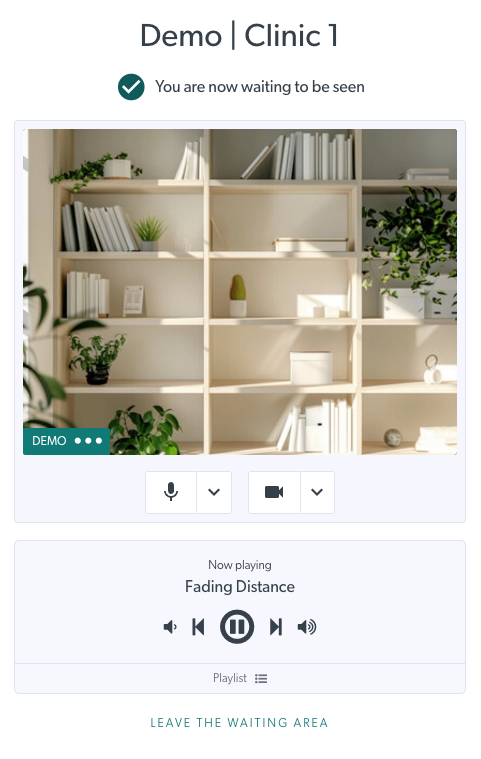
- Once admitted, your session will begin automatically.
Tips for a smooth experience
- Join a few minutes before your scheduled time.
- Use a quiet, well-lit environment.
- Close other apps or browser tabs that may use your camera or microphone.
Troubleshooting
If you’re unable to join your session, try the following:
- Refresh the page and try again.
- Reopen the original link.
- Check your internet connection.
For more help, see: What to Do if You Are Having Trouble Joining a Video Call
article.