
On this page:
- Why this happens
- Step 1: Download and re-upload your recording
- Step 2: Convert your recording to MP3 and upload it again
- Step 3: Contact support
Why this happens
Sometimes an AI Scribe note doesn't finish generating. It may stay on Applying template, or show the error AI Notes could not be generated.
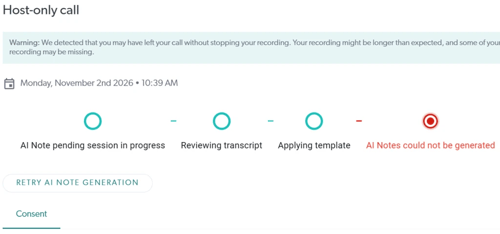
This most often happens when you leave a call without stopping the recording first. If this happened, you'll see a warning at the top of the note. To avoid this, always stop the recording before you leave the session.
You can usually fix this by generating the note again from your recording, using the steps below.
Step 1: Download and re-upload your recording
If you can still play back the recording, try generating the note again from the audio.
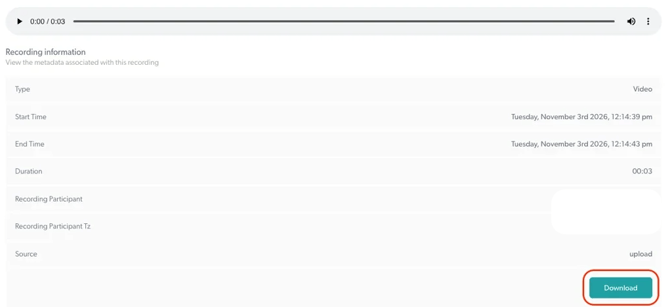
- Open the affected session and scroll to the bottom of the page.
- Click Download to save the recording to your device.
- Go back to the main Notes page and click Upload Recording.
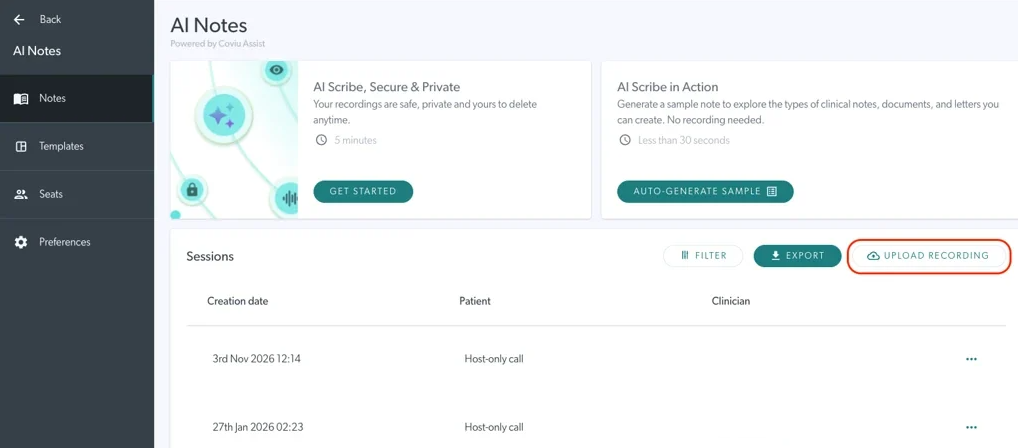
-
Select the file you just downloaded. For detailed steps, see How to Upload a Recording for AI Scribe Notes.
AI Scribe will then try to generate your note again from the uploaded recording.
Step 2: Convert your recording to MP3 and upload it again
If you see an error after uploading, such as Unable to retrieve transcriptions, the recording file may not have saved properly.
 Converting the recording to a new MP3 file usually fixes this. Here's how to do it with VLC, a free media player:
- Open the downloaded recording in VLC and go to Media > Convert / Save.
- Choose the Audio - MP3 profile, give the file a new name and click Start.
- Play the new file to check that the audio runs for the full length of the session.
- Upload the new MP3 file using Upload Recording, as in Step 1.
Step 3: Contact support
If your note still won't generate, contact our Customer Support team and include:
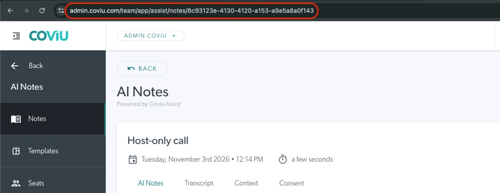
- The AI note URL. Open the affected note and copy the web address from your browser's address bar. It will look like this: https://yourclinic.coviu.com/team/app/assist/notes/...
- The date and approximate start time of the session
- About how long the session ran
- The steps you've already tried
With the AI note URL, our team can find your note quickly and help get it generated.