
Last Updated: September 2023
Note: This article only applies to customers who are on our Standard or Premium plan. If you are on our Enterprise plan, please view this article instead. Not sure what plan you are on? Click here to find out.
On this page:
Short video
Click here if you prefer to watch a short video for the instructions below.
How to download a consultation report:
- Enter your Coviu account as you normally would.
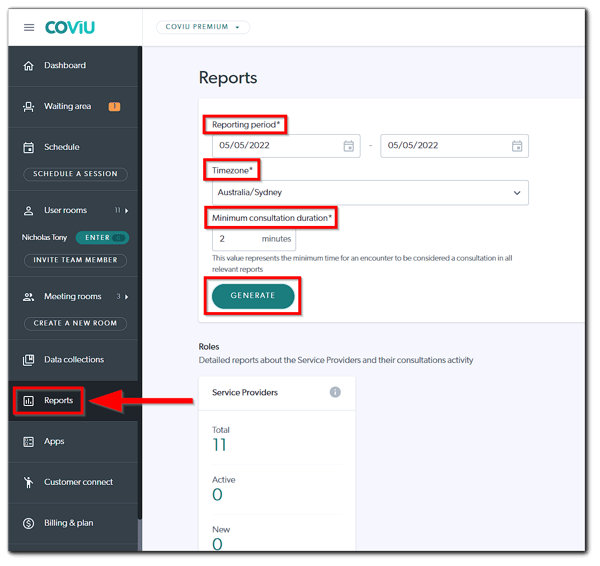
- From the menu on the left, click Reports (If you cannot see the Reports menu, then you are not the Owner or Administrator of your account).
-
As shown in the screen capture below:
-
Choose your Reporting period to a maximum of 60 days.
-
Select your Timezone.
-
Choose a Minimum consultation duration.
-
Click Generate.
-
- Four Microsoft Excel reports will be generated and you can choose which to download and manipulate.
- Service Providers: Detailed information about all the Service Providers in your Coviu Clinic and their Consultation/Calls activity.
- Meeting and User Room Calls: Detailed information about all the calls that took place through either a Meeting Room or User Room and their participants.
- Scheduled Sessions: Detailed information about all the consultations that took place through a Scheduled Session and their participants.
- Waiting Area Consultations: Detailed information about all the consultations that took place through a Waiting Area and their participants.
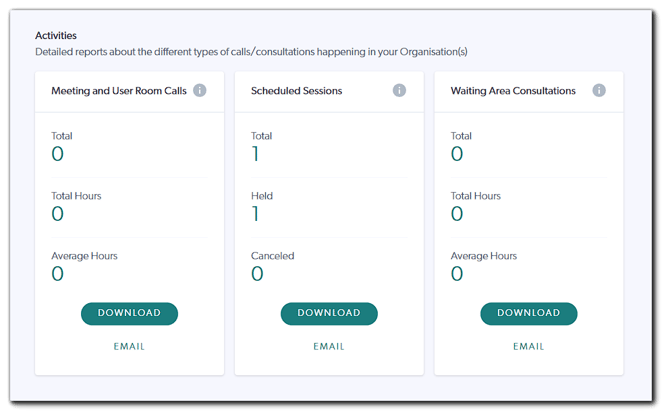
- The report will display at the bottom left corner of your browser window if you are using Chrome and you can choose whether to open or save the Spreadsheet from the up-arrow menu.
Note: Each Microsoft Excel report has explanatory notes called Field Description on Sheet 2.
More support options
You have completed another Coviu help article. You now know how to download a Consultation Report on your Coviu account.
If this is not what you were looking for, explore our knowledge base and search for another article from here.
If you still require any assistance, please do not hesitate to get in touch with our friendly Customer Success team using any of the contact methods available here.