
Securely store patient credit card details before a consultation and charge them later. Save time chasing people for payment and manage payments at a time that works for you.
-
Flexible configurations that allows this to be turned on per or all rooms.
-
Introduced multi-Stripe account support, enabling clinics to route payments to different accounts, including paying individual clinicians directly.
-
Card details are securely stored against the guest record.
-
Patients are not charged when entering their details, only after. Giving enough time to finalise the final amount.
To Begin:
To use Fast Payments:
-
You must have admin access.
-
At least one Stripe account must be connected to your clinic.
Connect Stripe:
-
Go to Configure.
-
Select Client Payment.
-
Add and connect your Stripe account.
[Tip: You can add multiple Stripe accounts to a clinic. This allows you to control who the payment goes to after every consult. Repeat step 3 to add additional Stripe accounts.]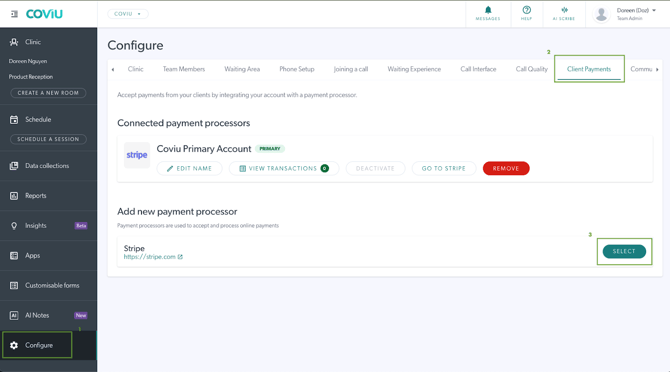
On This Page:
Enable Fast Payments for a Room
You can enable Fast Payments for a room from the configuration page. Once enabled, patients will be asked to provide their credit card details before joining a call in that room.
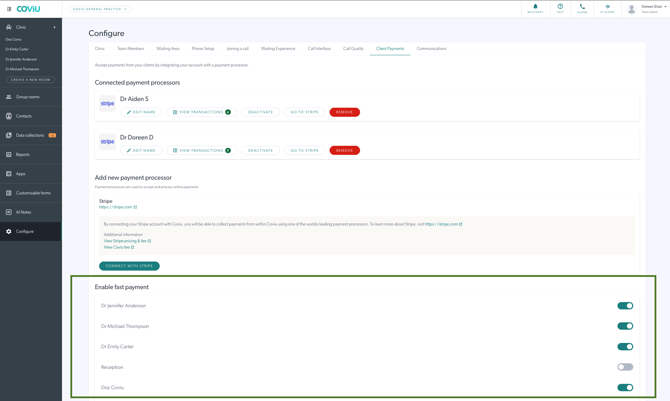
OR
-
Navigate to ‘Edit room’ by:
a. Clicking on the room you want to turn this on for from the top left of the dashboard, then clicking the setting gear icon next to the room’s name. Or
b. Navigate to Configure > Waiting Area > Room settings and management and click ‘edit’ on the room you wish to enable it on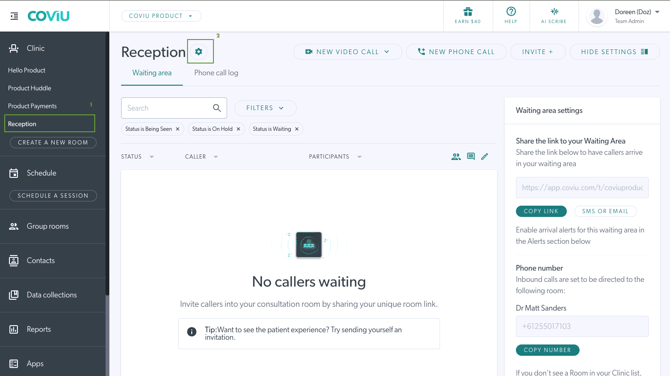
- This ‘edit room’ configuration is also available whenever you create a new room.
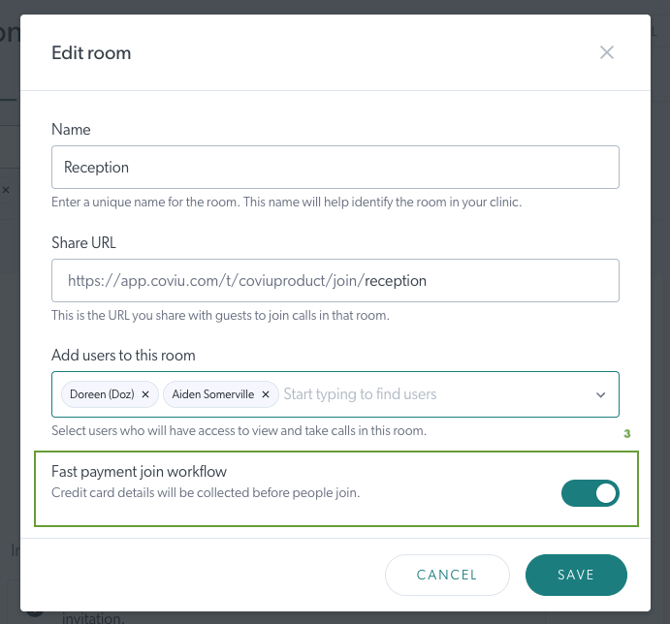
- Turn on Fast Payment Workflow.
- Save your changes.
What does enabling fast payment do? (Patient experience)
When joining a room with Fast Payments enabled, new patients will:
-
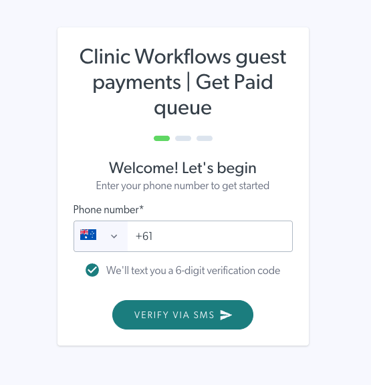
Enter their mobile number.
-
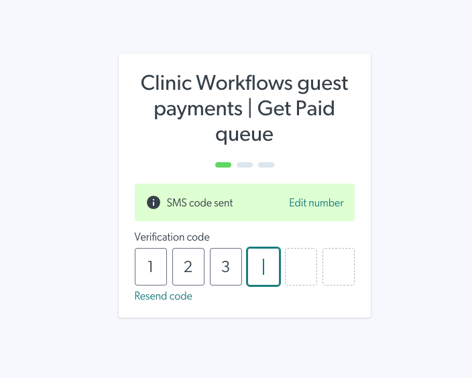
Verify identity via One-Time Password (OTP).
-
Enter their personal information (such as name and contact details)
-
Enter their credit card details before they join the call.
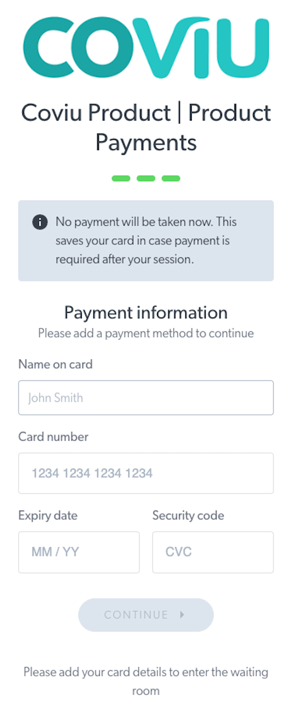
They will then be redirected to the waiting area.
Important: Patients are not charged. Their card details are securely stored for future use.
Returning Patients
Returning patients will:
-
Enter their mobile number.
-
Verify via OTP.
-
Join the call directly (they will not be asked to enter their card details again unless it is no longer valid).
Where Are Payment Details Stored?
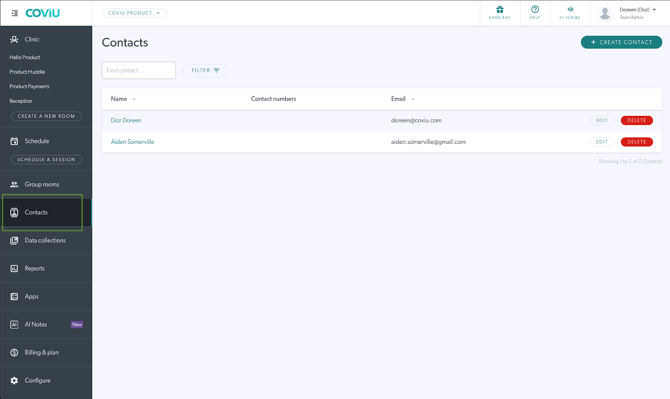
- Card and contact information are securely stored against ‘Contact’ which you can find in the left hand menu in your dashboard.
- Coviu partners with Stripe to manage sensitive financial details and workflows. All card details are handled by Stripe and only a masked version will be shown in the Coviu dashboard.
How to take payment?
To bill a stored card:
-
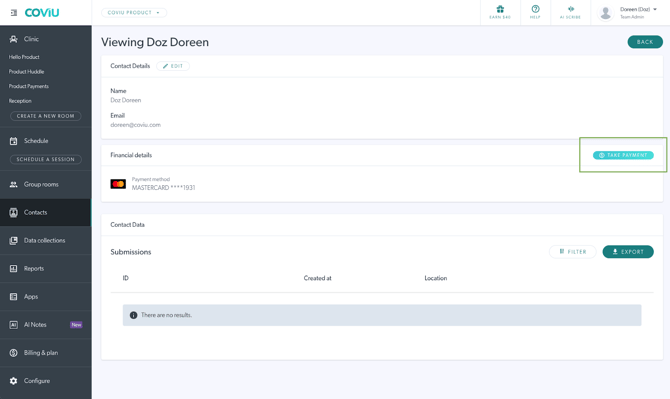
Go to ‘Contact’ on the left hand side of your menu.
-
Find the Contact you want to charge.
-
Click “Take Payment” button.
-
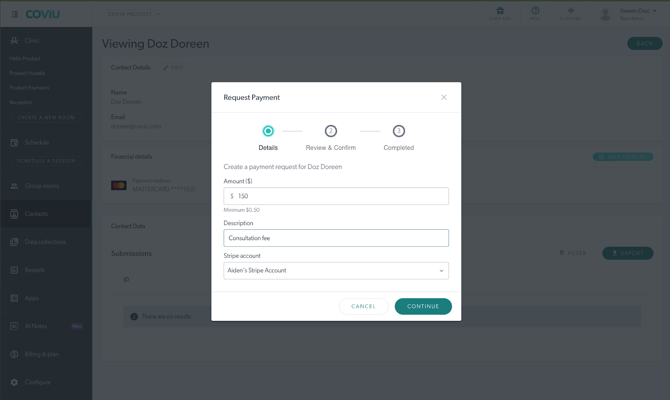
Enter the amount and follow the prompts to confirm the charge.
Once processed:
- The patient receives an SMS receipt confirming the charge.
For steps on how to set up your stripe account, you can access it here.
Transaction Fees
Coviu and Stripe charge per transaction when using Stripe with Coviu:
- Click here for Stripe's per-transaction fee.
- Essentials plan: 2.5%
- Standard plan: 1.5%
- Premium and Enterprise plans: 1%
- Individual Plan: 1% per transaction
- Clinic Plan: 1% per transaction
- Click here to find out what plan you are on.
Need help setting up a Stripe account? CLICK HERE.